
URAC requires that you change your password from time to time. We realize that this isn’t always convenient for you, but it is an important step toward maintaining a secure environment.
Several of our systems utilize “Single Sign On”, allowing you to use one URAC password for multiple systems and services. While we are always working to make this as seamless as we can, there are a few things that you can do on your end to ensure a smooth change.
- When you change your password, set a calendar event about 80 - 85 days into the future to remind you that your password change is coming up. The system will attempt to remind you, but it is easy to miss these reminders.
- Use the above reminder to determine the best time to reset your password. If you will be traveling, we suggest changing your password prior to your departure.
- If you are a remote employee, it is important that you change your password while connected to URAC from your home network. We recently implemented a new system called “DirectAccess” for our remote employees, which attempts to maintain your connection to URAC, but this system does not always function over the Verizon network when you are traveling.
- If you are based at the URAC Headquarters, we suggest that you change your password from your desk while connected via your ethernet cable or your dock.
- Immediately following a password change:
- Restart your laptop: This will allow all your applications to synchronize with the new password.
- When your computer restarts and you have logged-in with your new password, it is important to keep an eye out for applications asking you to update it. Your Microsoft applications will often ask you to confirm your password.
- It is especially important that you keep an eye out for a Skype for Business window which will ask for your new password. It looks like this:
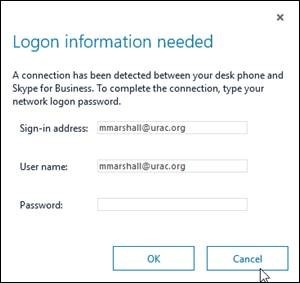
Note: This will update your Polycom phone with your new password.
d. If you have a URAC cell phone, you will need to update it with your new password. The phone may automatically ask you to update it, but this can also be done manually. Please feel free to reach out to IT for assistance.
e. If you have an additional PolyCom phone on a table in your office, please reach out to IT for assistance. We will update your phone to reflect your new password.
Please feel free to reach out to me or any member of the IT Team for assistance or with any questions you may have, thank you.
Steve Krehbiel, CISSP
I.T. Manager
Information Security Officer
URAC